Sign in and navigate
Sign in
- Open the Suite address supplied by your organization.
- Select Sign in if the identity-provider page is not shown automatically.
- Enter your work account details.
After sign-in, the Suite opens the first page available to your role. In most customer accounts this is Drones.
Do not bookmark an identity-provider or temporary sign-in address. Bookmark the normal Suite address instead.
Recover access
If you cannot remember your password:
- Contact your SABROBOTIX Administrator using your organization's approved channel. Customer Clients can also contact the Operator managing their customer account.
- The Administrator verifies your identity and issues a temporary password from User Management. For a customer Client, an Administrator or Operator can instead use Clients or the customer's Clients tab.
- Sign in with that temporary password within 30 minutes.
- Choose a permanent password when prompted. You have 10 minutes after sign-in to complete this step.
There is no reset email or self-service recovery link. If the temporary password expires or is lost, ask the authorized Administrator or customer Operator to issue a new one; the earlier value stops working.
New accounts use the same temporary-password procedure on first access. Complete the password change before opening other Suite pages.
Main navigation
The left navigation groups the sections available to your role under Operations, Records, and System:
- Drones — search the drone inventory and open aircraft records.
- Drone control — connect, monitor telemetry and video, and use permitted flight controls.
- Customers — manage customer organizations. Available to Operators and Administrators.
- Clients — manage customer-associated Client accounts. Available to Operators and Administrators.
- Licenses — manage customer licences and device activations. Available to Operators and Administrators. Clients instead see My licenses for their associated licences.
- Software — view the available Harlock installers. All roles can open the page; Clients need an eligible licence to download.
- Settings — choose language and appearance.
- User Management — manage Suite accounts. Available only to Administrators.
Drone control appears only when the remote-control feature is enabled for the deployment.
For customer-associated accounts, the customer identity near the top of the navigation shows the linked organization. Internal users can work across customers and may have no customer card. On a narrow screen, use the menu button to open or close the navigation.
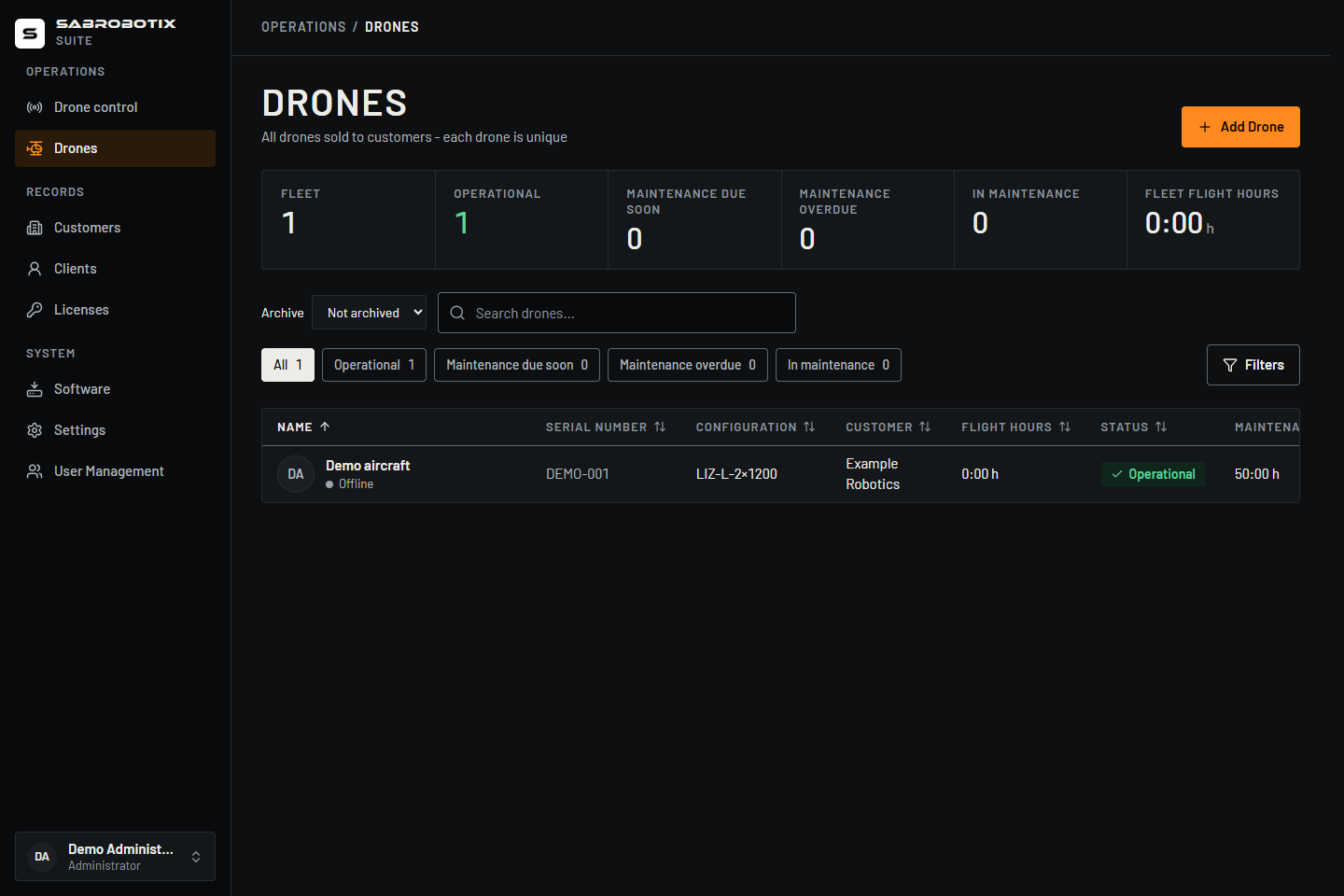 Administrator view with demonstration records. Client and Operator navigation differ.
Use a phone or tablet
Open the navigation with the menu button, choose a section, then close it when you need the page's full width. Tables use compact rows on narrow screens. For a row with several actions, open its three-dot actions menu; the menu shows the action names that appear as individual buttons on a wider screen. Opening that menu does not select the record or perform an action.
Check the name, email, customer, or serial on the row before choosing an action. Destructive actions still require their normal confirmation. Use a row's link or main identity area to open its details, and use the actions menu for editing, temporary passwords, or deletion. Search, filters, pagination, and selection remain specific to the current list.
Drone detail tabs can extend beyond the viewport: scroll the tab strip horizontally to reach Connectivity, Streams, or Setup when your role permits them. In Drone Control, selecting a drone collapses the selector on a narrow screen; select the drone's name above the map to reopen it. The camera choices move into Cameras; Mission and Parameters use their toolbar controls and adjacent panels.
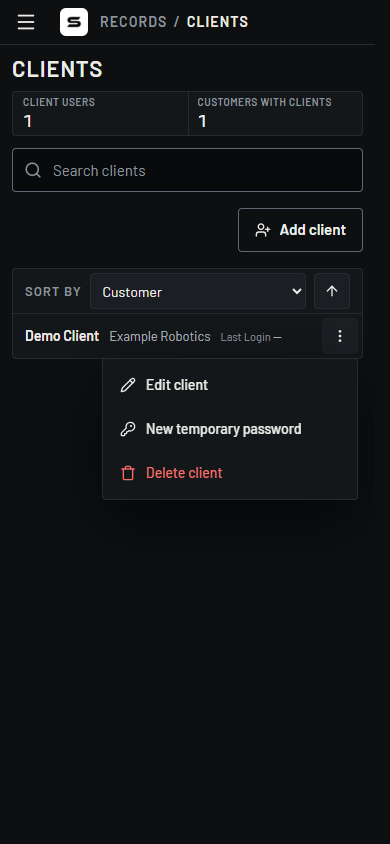 Administrator view at a phone width, with a demonstration Client's actions open. Opening the menu does not issue a password or delete the account.
Select a drone
On Drones, select a row to open that drone’s details. In Drone control, select a drone in the selector panel; the Suite connects and retries automatically.
Always confirm both the drone name and serial number. Names can be similar; the serial number identifies the exact aircraft record.
Understand status at a glance
The Drones list can show normal operating state, production state, maintenance due soon, maintenance overdue, or currently in maintenance. A status is a record-management indicator; it is not confirmation that the aircraft is safe or ready to fly.
Use the search box to find a name or serial number. Use Filters to narrow by customer, state, flight hours, maintenance due, or purchase date when those options are available to your role.