Setup and onboard computer
Administrators and Operators use Drones → select a drone → Setup. Clients do not see this tab. It contains Onboard computer and Remote access; Administrators also see Remote SSH.
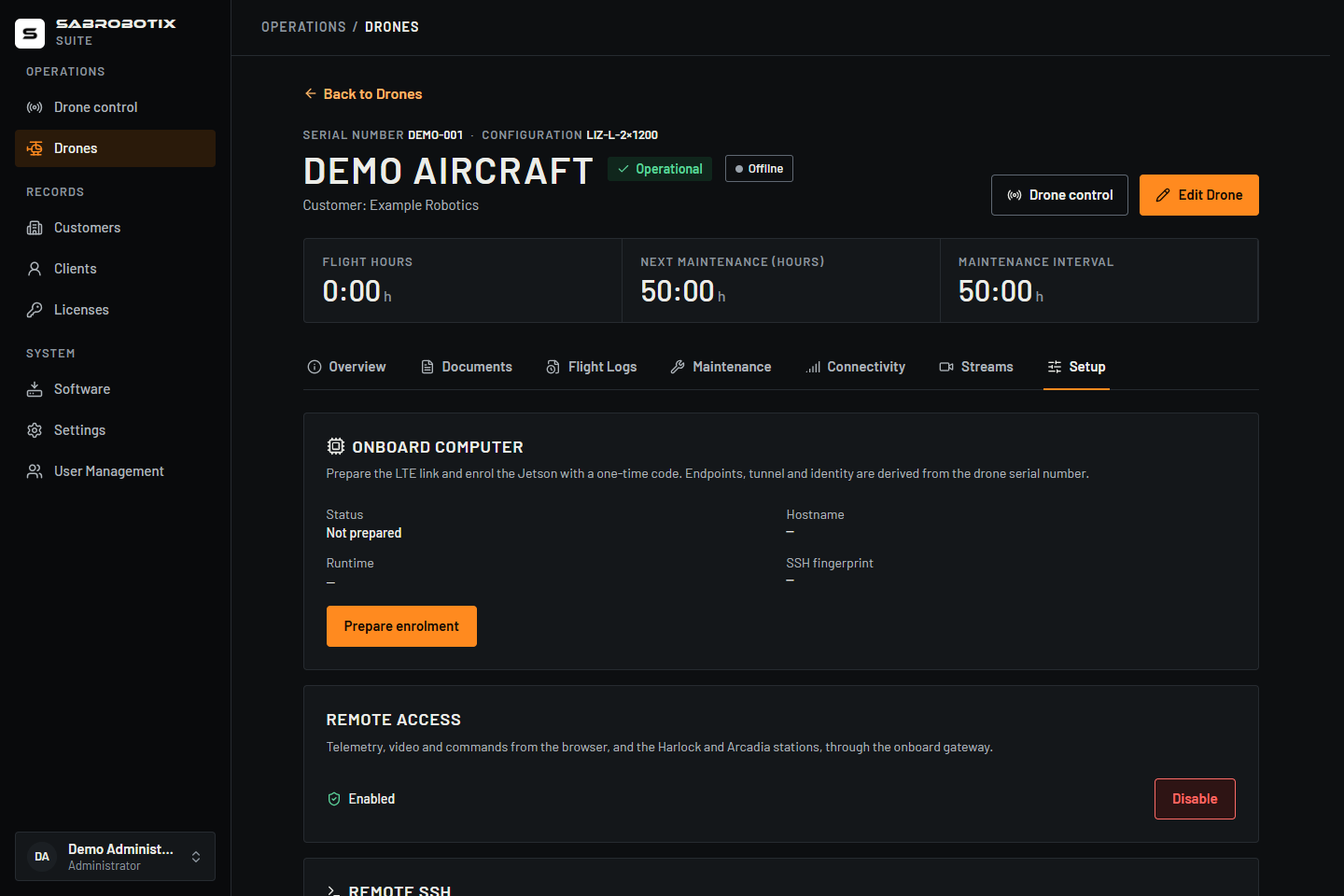 Administrator view of a demonstration drone before enrolment. No enrolment code or real device is shown.
Prepare enrolment
- Confirm the aircraft and serial number. For enrolment the serial must contain only letters, digits, and hyphens and be a valid gateway identity.
- Open Onboard computer and review Status.
- Select Prepare enrolment.
- Wait for the command and Code valid until time to appear. Copy the command for the technician responsible for that vehicle.
- Have the technician run the displayed command on the intended Jetson with the supported runtime installed. Use the technical setup instructions when preparing a new Jetson.
- Reload Setup after the technician completes the claim. Confirm Enrolled, the expected hostname, runtime/contract version, and SSH fingerprint.
Preparation provisions the vehicle's dedicated remote tunnel and saved endpoints. It does not install or power on the computer. Waiting for the Jetson means preparation exists but the machine has not completed enrolment. The code is single-use and valid for seven days; treat the command as a credential, not content for a screenshot or ticket.
Replace a Jetson
Replace Jetson prepares a replacement code for an already enrolled drone. Arrange a maintenance window with the responsible technician first. Completing replacement retires the previous machine identity and SSH host key and records the new ones; the vehicle hostname and tunnel remain stable.
Do not use replacement as an ordinary reconnect action. After replacement, recheck runtime compatibility, fingerprint, telemetry, video, and file delivery before returning the vehicle to service. If a code expires or preparation reports an error, inspect the current state and exact message before issuing another.
Remote access
Use the Remote access card to allow or disable remote vehicle links. It is a policy control, not an immediate aircraft stop. Existing tokens, telemetry, and WebRTC sessions have different lifetimes. Read Remote access before changing it during operations. Per-account permission to request control from Harlock is a separate Administrator setting.
Remote SSH
Only Administrators can publish or withdraw SSH from this card. Publishing requires configured Cloudflare Access, an enrolled vehicle, and remote access enabled. Read the confirmation before publishing. The card provides the SSH configuration and current host-key fingerprints; use the Remote SSH guide for setup and connection.
Disabling vehicle remote access also withdraws SSH publication. A host-key mismatch requires investigation; do not remove a trusted key merely to suppress a warning. An enrolled state or published hostname does not prove the Jetson is currently online.
If setup cannot complete
- For an invalid serial, verify the recorded identity with the responsible technician rather than copying another vehicle's settings.
- For tunnel, signing-key, allowed-origin, or contract errors, give the exact message to the Suite system operator.
- A failed status read is different from Not prepared. Restore the Suite connection and reload before preparing or replacing a machine.
- Do not include enrolment codes, tunnel connector credentials, or private keys in a support report.