Documents, flight logs, and maintenance
Open Drones, select an aircraft, then choose the relevant tab.
Documents
The Documents tab stores files associated with the selected drone, such as manuals, certificates, or customer handover records.
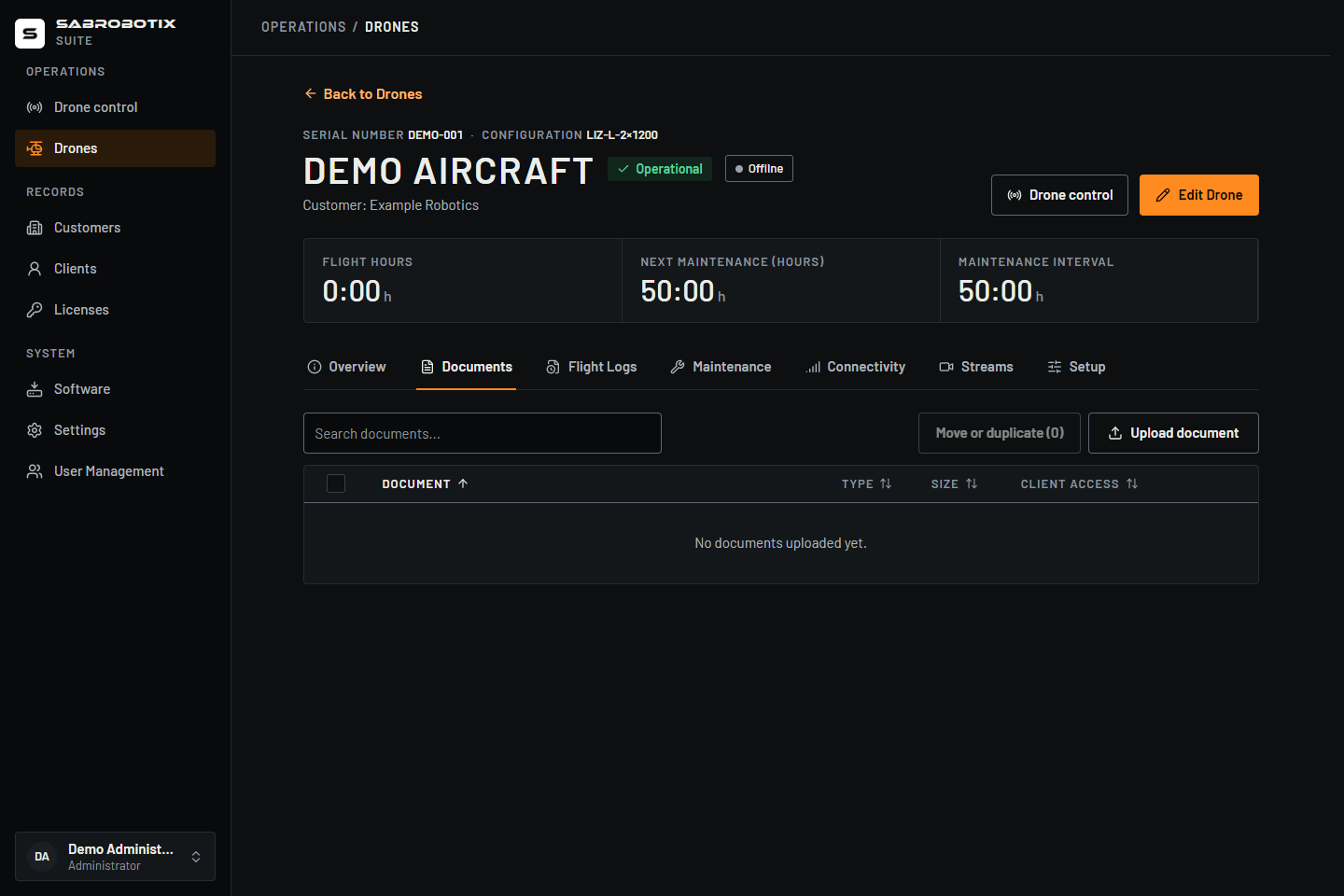 Administrator view of an empty demonstration document list.
To view or download a document:
- Open Documents.
- Search by document name if necessary.
- Select a PDF document name to preview it. DOCX files download instead; use the download control to save either format.
- Follow your browser’s download prompt.
Administrators, Operators, and Clients can upload PDF and DOCX documents to drones they can access. Use Upload document, choose a file, review its name, and save it. Confirm the selected drone before uploading.
The file format is preserved when you choose its display name. Other formats are rejected. Wait for the upload to finish and confirm the document appears in the table before leaving the page.
Only Administrators and Operators can rename or remove documents, including documents uploaded by a Client, and decide which documents are shared with Client accounts. A Client cannot rename or delete a document after uploading it.
What Clients can see
Clients see documents explicitly shared by staff, plus documents they uploaded themselves. A Client upload starts unshared: other Client accounts cannot see it until an Administrator or Operator shares it. Staff can see all documents for the drone.
Photos, videos, and maintenance attachments also require staff to share them before Clients can see them. If a file is missing from a Client's view, check its sharing state before uploading another copy. Sharing a file makes it visible to Client accounts with access to that drone, not just one recipient.
To change a document's visibility as an Administrator or Operator:
- Find the document in Documents.
- In Client access, select Hidden to share it, or Shared to hide it.
- Wait for the control to show the new state. If an error appears, check the state before trying again.
The Client upload badge identifies documents uploaded by a Client. Hiding such a document removes sharing with other Client accounts; its uploader can still see their own document.
Rename or delete a document
Available to Administrators and Operators.
Use Rename on the document row, enter the new name, and save. Use Delete and confirm to remove it. Download any copy required by your retention procedure before deletion. Deleting and hiding are different actions: use Client access when the file should remain in the Suite but no longer be shared.
Flight logs
The Flight Logs tab contains ArduPilot DataFlash logs (.bin) and accepted telemetry log files (.tlog). Staff also
see a separate Harlock sessions section containing the ground station's
JSONL journal of commands, confirmations, notifications and autopilot messages.
Clients see flight logs only, without the Harlock sessions or source metadata.
The tables show date/time, duration, file size and the fields available for each record. Each section loads one page at a time, newest first, with its own total and Previous/Next controls. Search applies to the records on the server, including records outside the current page; sorting the date column reverses the date order across the full result.
The summary separates Flights, Flight time, Harlock sessions, and Last activity. Flight time comes from flight-log durations only; a missing-duration count identifies records that cannot contribute. A Harlock session is not necessarily a flight, and its elapsed duration is not added to aircraft flight hours. Clients do not see Harlock session information.
To find a log:
- Open Flight Logs.
- Search by a value shown in the table.
- Select the date/time heading to reverse the order, or use Previous/Next to move through the results.
- Use Download flight log on the correct row. Repeat the search in the separate Harlock section when looking for a ground-station journal.
Administrators and Operators can add or update flight records and upload Harlock session files. Check the flight date, duration and selected drone before saving. Open a Harlock session to inspect the recorded activity; overlapping flight/session entries identify the corresponding time interval.
Select multiple rows to download them together as a ZIP. Staff can also delete selected records after one confirmation. Downloading keeps the original files; deleting a Suite record does not delete the source log on the autopilot.
Add or correct a flight log
Available to Administrators and Operators.
- In Flight Logs, use the add-log action and choose a
.binor.tlogfile. - Wait for local file analysis. A
.binmay supply the start time, duration, and location;.tlogmetadata is entered manually. - Review the date/time and duration in minutes, then add or correct pilot, location, and notes. File analysis does not replace verification of the aircraft's official records.
- Save to start the upload, keep the dialog open, and wait for completion.
- Confirm the record appears in the correct drone's list. If a file is already present, the upload flow deduplicates it instead of creating another available copy.
Use the row's edit action to correct metadata. Editing does not replace the stored source file. For a failed upload, retain the local original and check the list and error before retrying.
Staff upload Harlock .jsonl journals through the separate Harlock sessions section and can open a session to inspect its recorded commands, confirmations, notifications, and autopilot messages. Session activity and flight duration have different meanings; use the overlap information to correlate sessions with flights rather than adding both durations as independent flights.
The session Activity column can show Armed 6:12 · 3 arms, meaning six minutes and twelve seconds armed across three arming periods, or Never armed. Older summaries may have no arming figures; absence of those figures does not establish that the aircraft never armed. Current Harlock versions omit automatic uploads for sessions that never armed, so the Suite is not a complete list of every time the ground station was opened. A manually uploaded journal can still contain no arming. Armed time describes the session's recorded state and is separate from the flight-log duration.
Automatic delivery
With the appropriate Harlock and Jetson components installed and configured, Harlock hands off DataFlash logs and session segments to the Jetson. Its local queue uploads files when the Suite becomes reachable, using the enrolled machine identity so the Suite determines the destination drone. Manual uploads remain available. An upload may still be pending or failed; a configured vehicle does not prove every file has arrived.
A missing flight in the Suite does not prove that the aircraft did not fly. Follow your organization’s process for importing or entering logs.
Maintenance
The Maintenance tab shows maintenance history, including the recorded date, flight hours at maintenance, description, and cost where used.
Administrators and Operators can add, edit, or delete maintenance records.
To add a maintenance record:
- Open the drone's Maintenance tab and select Add Maintenance.
- Enter the completion date and time.
- Review the aircraft flight hours at maintenance. The form may suggest rounded hours from the Suite; replace them with the correct recorded value when necessary.
- Add a description of the completed work and any cost, choosing the appropriate currency.
- Save, then select the new history row to open Maintenance Details.
- Add any required attachments in the saved record, as described below.
Use Edit in the details or the edit action in the history row to correct a record. After saving, review the date, flight hours, description, and cost. Reload the drone's details page to review its updated maintenance summary.
Attach documents to maintenance
Available to Administrators and Operators, after the maintenance record has been saved.
- Select the maintenance history row.
- In the details' Documents section, select Upload document.
- Choose a PDF or DOCX file.
- Enter its name and save. Wait for it to appear in the attachment table.
- If Clients should see it, select Hidden in Client access and wait for Shared.
New attachments start hidden from Clients. Search by document name to find an attachment, select a PDF name to preview it in another tab, or use Download to save a copy. DOCX files download instead of opening a preview. Staff can also rename or delete attachments from their rows.
The main Documents tab and a maintenance record's Documents section are separate lists. Attach evidence to the maintenance record it supports so it can be found with that work history.
Delete maintenance
Available to Administrators and Operators. Use Delete on the record and confirm. The action removes the maintenance record and its attachments. Download required evidence before deletion; use Edit for a correction that should preserve the record.
Suite maintenance indicators are planning aids. They do not replace the approved maintenance program, airworthiness requirements, or signed maintenance records.
If a record is missing
- Clear the search field and check the selected drone.
- Refresh the page.
- Confirm that your role can view that customer.
- Ask an Administrator or Operator whether the record has been uploaded.
- Contact support if records remain unavailable after other Suite pages load normally.