Drone list and details
Find a drone
Serial numbers are unique across all customers. Leading/trailing whitespace and
letter case are ignored (SR00011 and sr00011 identify the same serial).
The complete text is significant: SR00011 (ex SR00016) is a different serial.
Creation and editing show a specific message when another drone uses the serial.
- Open Drones.
- Enter part of the drone name or serial number in Search drones.
- If needed, select Filters and choose the relevant customer, state, hour range, maintenance range, or purchase date.
- Select a column heading to change the sort order.
- Select the drone row.
The list shows flight hours and maintenance information recorded in the Suite. The values may be unavailable for a newly delivered aircraft or before flight logs are added.
Onboard computer presence
Where an onboard computer is registered, its presence indicator reports whether the Suite sees it through the vehicle tunnel. Hover or focus the indicator for the available explanation and time. An unknown state means the presence source could not be checked; no indicator can mean no onboard link is registered.
Without a registered tunnel, the Suite can check the configured gateway when remote access is enabled. With neither a usable tunnel nor a gateway to check, it shows no presence status. This check does not establish that an autopilot or camera is producing data.
Computer presence, the aircraft's recorded operational state, and fresh autopilot telemetry are different. An online Jetson can have no current autopilot data, and an Operational record can belong to an offline aircraft. Use Drone Control link status for flight-data freshness.
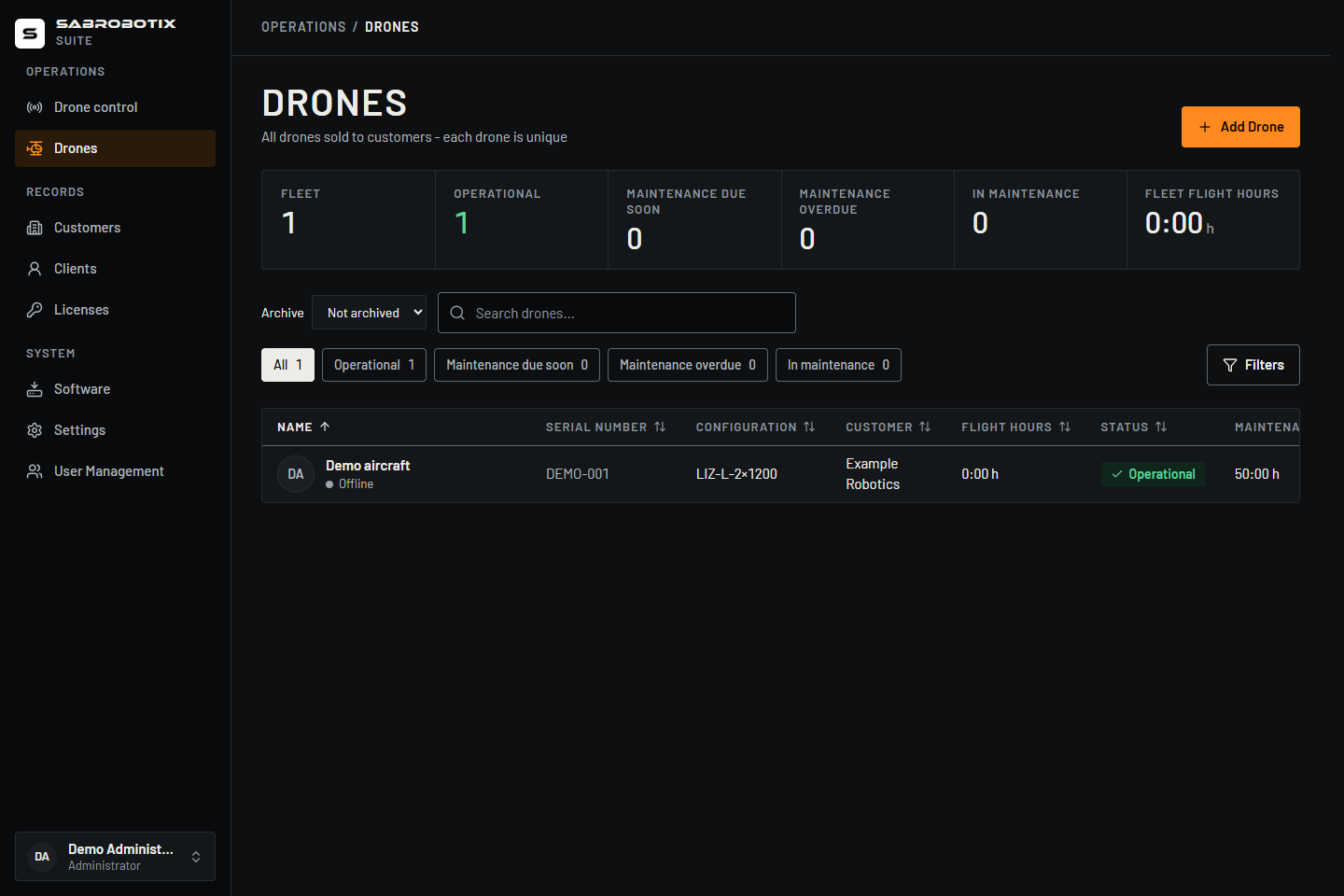 Administrator view, demonstration aircraft. Scroll wide tables horizontally to see all columns.
Read the details page
The top summary contains:
- customer assignment;
- maintenance interval;
- total flight hours;
- hours to the next scheduled maintenance;
- current recorded state.
The Overview tab contains the drone’s name, serial number, purchase date, description, technical specifications, and available photos or videos.
See Photos, videos, and sharing for gallery uploads, downloads, Client visibility, and QR codes.
Use the tabs to choose the information or settings you need:
| Tab | What it contains | Who can use it |
|---|---|---|
| Overview | Identity, specifications, photos, and videos | All roles; Clients see shared media |
| Documents | Drone documents and uploads | All roles, with document permissions |
| Flight Logs | DataFlash flight logs; staff also see Harlock sessions | All roles; Clients see flight logs only |
| Maintenance | Maintenance history and its attachments | All roles; Clients can read records and shared attachments |
| Connectivity | SIM usage and configuration, and internet-connected stations | Administrators and Operators |
| Streams | Saved camera names, RTSP sources, and gimbal settings | Administrators and Operators |
| Setup | Onboard computer enrolment and remote access; Administrators also see Remote SSH | Administrators and Operators |
For record procedures, see Documents, flight logs, and maintenance. Camera configuration is described in Video and cameras. Onboard computer enrolment and Remote SSH are described in the technical guides The remote link and Remote SSH.
For the controls on Setup, start with Setup and onboard computer.
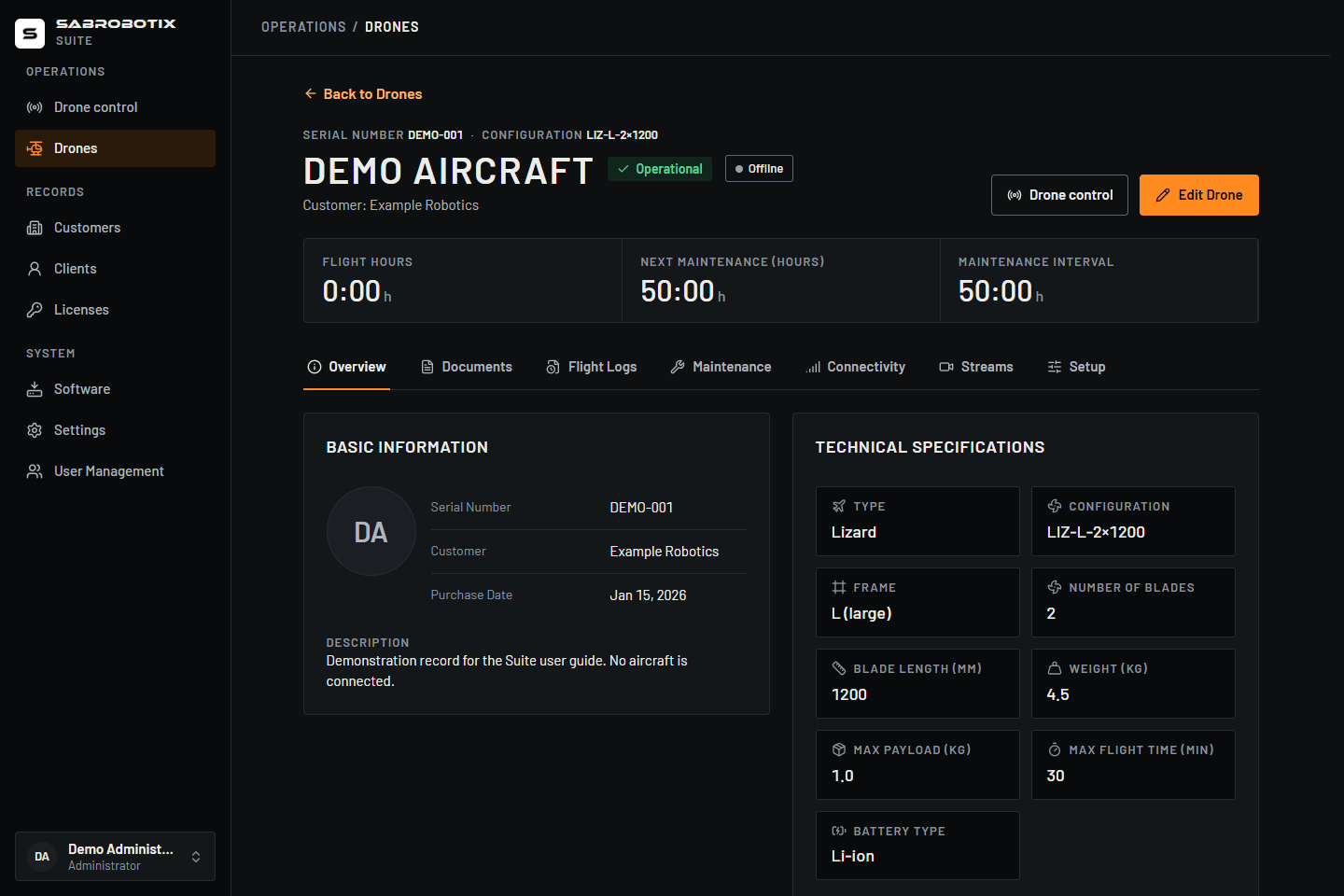 Administrator view with demonstration data; no aircraft is connected.
Flight hours and maintenance due values depend on the records stored in the Suite. Compare them with the aircraft’s official records when required by your procedures.
Retire or archive a drone
Administrators and Operators can choose Retired in the drone editor and record an optional reason, such as an accident. Archive is a separate checkbox: it hides the drone from the default drone list and the customer's drone list, while keeping its files, records, and recorded state.
Use the Archive filter to show archived drones or all drones, open a record, and clear the checkbox to restore visibility. Returning a retired drone to Operational is a separate, explicit state change. Retirement and archive do not disable Drone Control or remote access; the existing remote-access switch remains separate.
Add or edit a drone
Available to Administrators and Operators.
- From Drones, select Add Drone, or open an existing drone and select Edit.
- Enter the identity and customer assignment.
- Select the Type and, when known, its Configuration, as described below. Complete the operational state, purchase date, maintenance interval, and specifications that apply.
- Add suitable photos or videos if required.
- Review the serial number and customer carefully.
- Save.
The updated values appear in the list and details page.
Type and configuration code
Select Lizard, Bulldog, or X84 in the drone editor. The Configuration choices depend on that type. Changing the type clears the previous configuration; choose the correct one again before saving.
| Type | Available configuration codes | Meaning |
|---|---|---|
| Lizard | LIZ-M-2×1000, LIZ-M-3×800, LIZ-L-2×1200, LIZ-L-3×1000 | Type, M/L frame, blade count × blade length in millimetres |
| Bulldog | BUL-L-2×1200 | L frame with two 1200 mm blades per rotor |
| X84 | X84-2, X84-4 | X84 type with two or four motors; 84 cm width is part of the type |
Choosing a rotor configuration sets its frame, blade count, and blade length together. With Not set, a Lizard or Bulldog can retain a manually entered blade length, but the Suite cannot display a complete configuration code. The fleet table then shows the type alone. Confirm the actual aircraft specifications before completing a missing configuration, including on older records.
The code appears in the fleet table and beside the serial number on the details page. Drone Control supports Lizard and Bulldog only: X84 records remain available under Drones, but do not appear in its vehicle selector or fleet and have no Drone Control button. Supported types also require remote access to be enabled.
Deleting a drone can affect access to its associated records. Confirm your organization’s retention requirements before approving deletion.
Connection information
A drone’s telemetry connection and gateway settings are set when its onboard computer is enrolled, and are not edited in the Suite. Configure up to three camera sources in Drones → select a drone → Streams: zoom, thermal, and FPV on their fixed camera slots. See Video and cameras.
Only change connection information supplied by SABROBOTIX or your authorized system administrator. A wrong value can make telemetry or video unavailable.
Do not copy connection values from another drone: each connection belongs to one aircraft record.
Remote access
Administrators and Operators can open Drones → select a drone → Setup → Remote access to allow or disable remote links. The Setup tab is not shown to Clients.
Switching remote access off prevents new gateway tokens and refuses requests through Suite routes at their next authorization check. Existing connections do not all stop at once:
- Direct gimbal and zoom commands may continue using an already issued token until it expires or needs renewal. Tokens last 30–300 seconds, with a default of 120 seconds.
- An open browser telemetry connection closes when its periodic authorization is refused; renewal is requested every 60 seconds.
- An established WebRTC video session can continue until the player or session closes.
- Published remote SSH access is withdrawn.
This switch sends no flight command to the aircraft. Follow the operational handover or lost-link procedure rather than treating it as an immediate stop control. See Remote access switch for the technical details.
SIM data usage
Administrators and Operators can open a drone’s Connectivity tab to view its SIM usage. It can show consumed data, the plan total, and the remaining percentage.
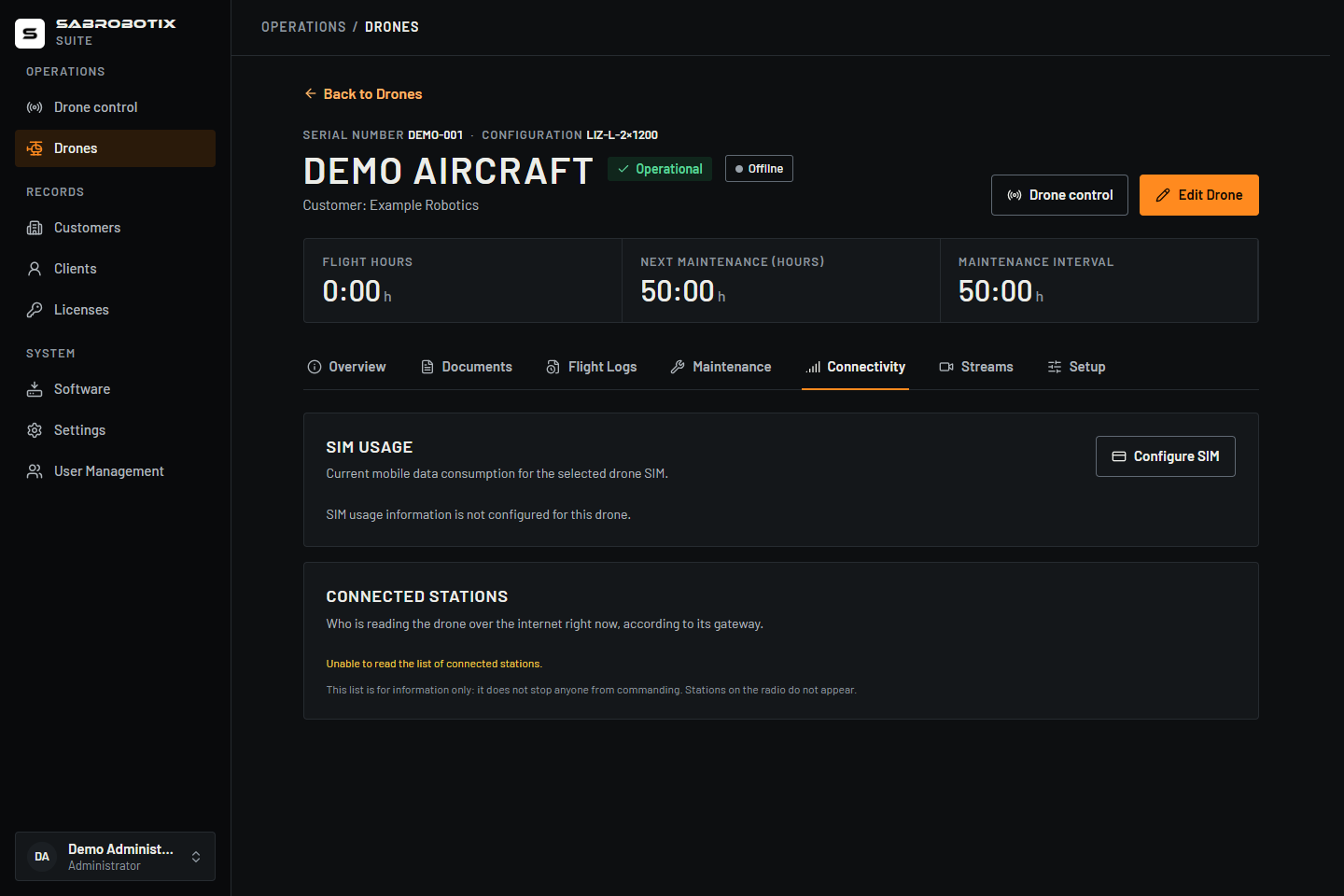 Administrator view. This example has no live gateway or SIM provider attached; an unavailable station read does not mean that the station list is empty.
Administrators and Operators can update the provider settings through Configure SIM usage.
- Not configured means the Suite has no usage source for this drone.
- Unavailable means usage could not be retrieved at that time.
- If the plan total is unknown, the Suite cannot calculate an exact percentage.
SIM usage is an information aid. A low remaining allowance can interrupt telemetry or video, but a normal allowance does not prove that the mobile network is currently reachable.