Users and access
User Management is available only to Administrators. Operators manage customer-associated Clients through the customer Client flow; they cannot use this page to manage internal users.
Find a user
Open User Management under System. Search by name or email and use Filters for role and creation date. Clear the search and filters if an expected account is missing. Check Status separately from Role: an Administrator, Operator, or Client account can be disabled.
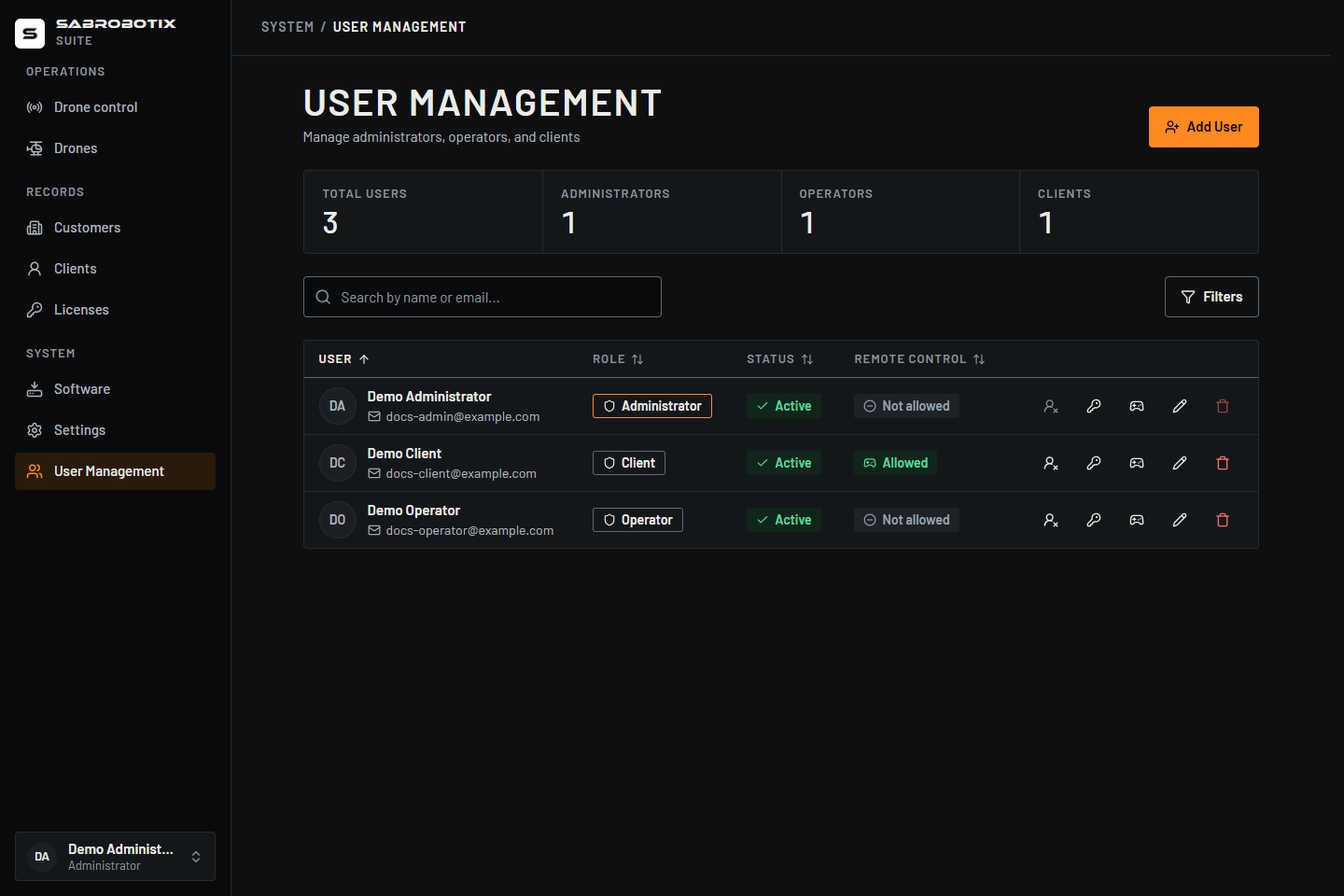 Administrator view of demonstration accounts. No temporary passwords are shown.
Create a user
- Select Add User.
- Enter first name, last name, and a unique email.
- Choose the required role after reviewing Roles and permissions.
- Save and copy the temporary first-access password before dismissing the credentials dialog.
- Provide the password securely and explain the 30-minute first-sign-in expiry and required password replacement.
For a customer Client, use Clients → Add client and choose the customer, or Customers → customer → Clients → Add client. Both create the account and its customer link together. Selecting Client in Add User does not by itself associate that account with a customer. Do not promise drone or licence visibility until the association has been checked.
If creation succeeds but a profile-image upload fails, inspect the user list before retrying creation. The account may already exist.
Edit an account
Select Edit user on the correct row, update the profile or role, and save. An email change changes the sign-in identifier. A role change does not create or change a customer association. Ask the person to sign out and back in and verify the expected sections and records.
Use Account for your own permitted profile changes. Keep another authorized Administrator available before making administrative-role changes. The interface blocks disabling or deleting your own account; that protection does not replace access planning.
Issue a temporary password
This User Management procedure is Administrator-only. Administrators and Operators can instead reset a customer Client through Clients or the customer's Clients tab, without access to User Management.
- Confirm the person's identity and account email.
- Select the key action Issue temporary password beside that user.
- Read the confirmation and confirm.
- Copy the new password before closing the dialog. It is shown once and cannot be recovered.
- Tell the user to sign in within 30 minutes and replace it within 10 minutes of sign-in.
Issuing it invalidates older Suite browser sessions, refresh tokens, pending authorization codes, and earlier temporary passwords. The replacement must meet the displayed password requirements and differ from the temporary value. No other Suite page is available from the restricted password-change session.
If either period expires, or the value or restricted session is lost, issue a new password. Administrators cannot choose or retrieve the generated value. This flow also handles password changes requested by existing users; there is no self-service reset email.
Allow or revoke remote control
Remote control lets a user request control of a drone from Harlock on a computer, over the internet. It is given one account at a time, not by role, and a Client can hold it too. Only vehicles already in that account's permitted fleet, of a supported type, with remote access on and a configured gateway are offered. The grant does not change customer associations or expand vehicle visibility.
- Find the user and check that this is the intended account.
- Select Allow remote control, read the confirmation, and confirm.
- Check that the Remote control column shows Allowed.
Holding it does not hand anyone the drone. Harlock on a computer always opens a drone in view only, and the pilot on the radio has to accept each request. A request is refused when no radio is connected and in control.
This permission applies to Harlock desktop. It does not grant Suite web flight commands or remove the current web camera-launch limitation.
To take it away, select Revoke remote control. A session already in control is not cut off, because stopping it in flight could start a failsafe; it carries on with an alarm, and new requests are refused.
Disable or enable a user
- Find the user and check that this is the intended account.
- Select Disable user, read the confirmation, and confirm.
- Check that the row shows Disabled.
Disabling blocks new sign-ins and invalidates Suite browser sessions, refresh tokens, and unconsumed authorization codes while retaining the account. Already issued access tokens are separate: do not treat this as an immediate revocation of every external application's in-flight credential or a flight-stop action.
To restore access, select Enable user and confirm. Check Active and ask the user to sign in again; old sessions remain invalid. Re-enabling does not recover an expired temporary password, so issue a new one when needed.
Delete a user
Select Delete user, review the confirmation, and confirm only after checking identity, ownership, retention, and the need to preserve an account. Deletion cannot be undone through the Suite. Your own active Administrator account cannot be deleted.
If the Suite reports that the account is still referenced, do not keep trying or delete unrelated business records to force it through. Disable the account to withdraw sign-in access and ask the responsible system operator to review the references. See Authentication and licensing for the boundary between account and device credentials.