Manage licenses and activations
Available to Administrators and Operators. Clients use My licenses. A Suite account, permission to view a drone, and a Harlock licence are separate: signing in does not activate a licence.
Find a license
- Open Licenses under Records.
- Search by code or customer name. Use Status and Type to filter the list.
- Select a row to open License details.
- Review Summary, Activations, Warnings, and Audit log.
If a licence appears missing, clear the search and both filters before creating another one.
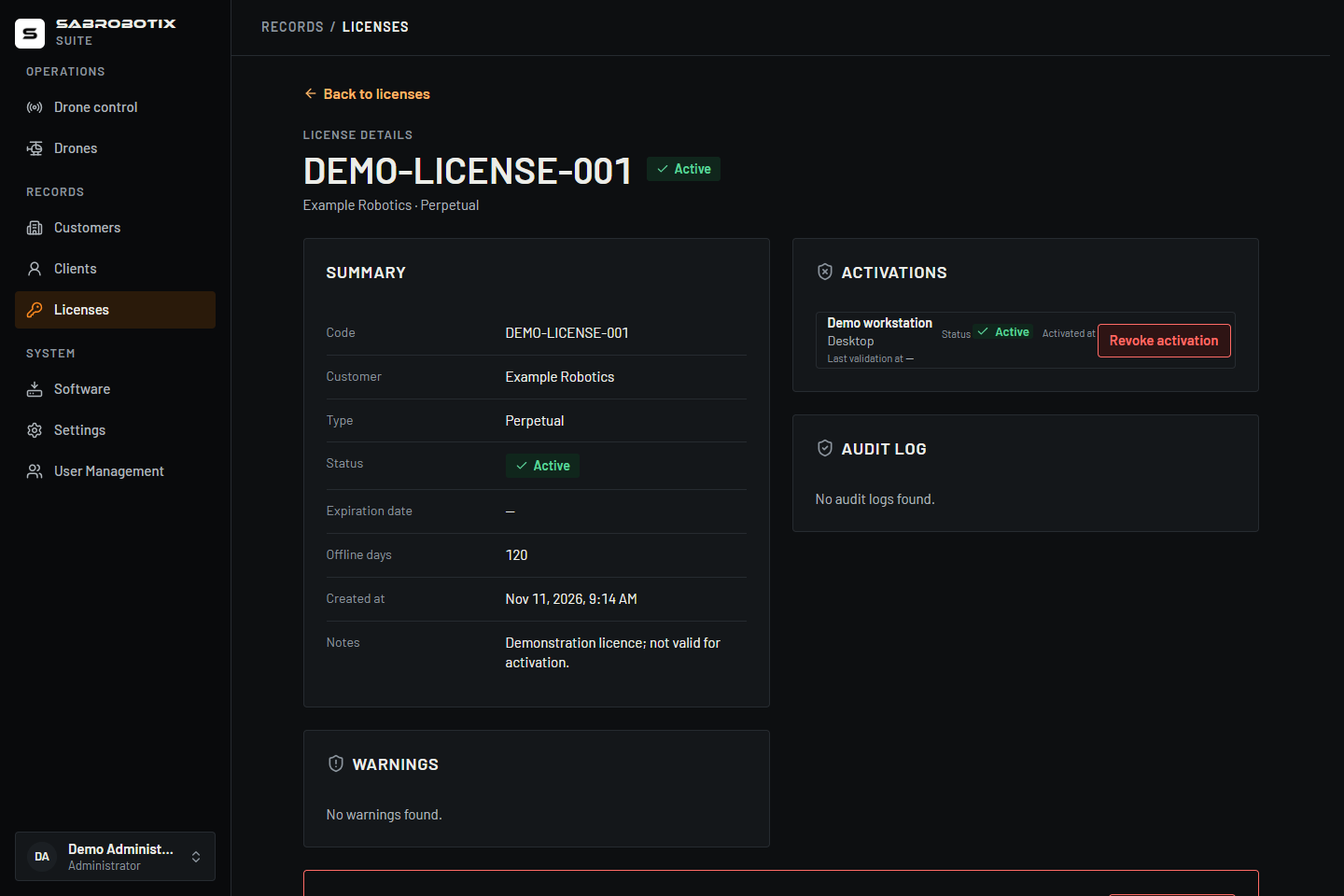 Administrator view with an illustrative licence and device; this code cannot activate Harlock.
Create a license
- Confirm the customer organization already exists.
- Select Create license.
- Choose Customer and Type. For Expiring, enter the expiration date.
- Add any notes that the customer's Client accounts may read.
- Select Save, wait for confirmation, and open the new licence.
- Check its customer, generated code, type, and expiration date before handing it over.
The Suite generates the code; you do not choose it. New licences start Not activated. Activation takes place in Harlock after installation, not on this page. See Software.
| Type | Expiration | Default Offline days |
|---|---|---|
| Perpetual | No date | 120 |
| Expiring | Required date | 30 |
| Internal | No date | No value |
Offline days is the configured licence allowance, not a guarantee that a device can work offline starting today. Harlock uses its last successful validation and the returned offline deadline; expiration and revocation also affect access. Review the actual device state in Harlock before an operation.
The current Suite interface creates and revokes licences; it has no licence editing or renewal form. Contact the responsible licensing operator when a customer or expiry must change rather than assuming that editing notes or warnings renews a licence.
Understand status and activations
| License status | Meaning |
|---|---|
| Not activated | Created but not yet activated on a device |
| Active | Activated; check its expiry and individual devices as well |
| Expired | The expiration date has passed |
| Revoked | Withdrawn by staff; it cannot be activated again |
An activation represents a device, not another licence. In Activations, check its label, platform, status, activation date, and Last validation at. A missing or old validation time does not prove the device is currently online. Deactivated means the activation was released; Revoked means staff withdrew that activation.
Revoke one activation
- Open the correct licence and find the device in Activations.
- Confirm its label and platform with the responsible user.
- Select Revoke activation on the active row.
- Review the confirmation and confirm.
- Check that the activation now shows Revoked.
Harlock refuses that activation at its next check. This action affects that device activation; it does not revoke the whole licence. It is not a flight-stop command.
Revoke the license
- Confirm the code and customer in Summary.
- Select Revoke license and read the confirmation.
- Confirm, then check the licence and activation states and the audit entry.
Revocation is irreversible in the current interface. Active activations are revoked with the licence, and Harlock refuses it on every device at its next check. Do not promise an immediate stop on offline devices. Use this action only when access should end; use activation revocation when only one device is affected.
Manage expiration warnings
Expiring licences can produce warnings at 30, 7, 3, 2, and 1 day before expiry. The current warning row uses the nearest applicable threshold, not all thresholds at once.
In Warnings, change the Suite or GCS switch for the displayed threshold and wait for the update. These are separate scopes. Disabling a warning does not extend a licence or change its access rights. A later threshold can produce a new warning.
Clients can change the Suite warning switch from My licenses; they cannot change the GCS switch there. The setting is stored for the licence and threshold, not as a separate private preference per viewer.
Review Harlock adoption
The Harlock adoption card on Licenses summarizes active installations, their reported versions, and the target rollout version. Select Refresh to request an updated report.
Seen in the last 30 days describes recent contact with the Suite. Unknown version means no usable version was reported. Installations requiring attention distinguishes updates needed from installations not seen recently. Contact the responsible user to confirm the situation; this report neither installs updates nor establishes that a drone is online.
If something fails
- If creation reports that the licence was created but the list could not reload, refresh and search for it before trying again.
- If revocation reports an error, reload the detail and check its state and audit log before repeating it.
- If no warnings appear, check the type, status, expiry, and remaining days; perpetual licences do not have expiration warnings.
- Use the audit log's time, event, actor, and details when investigating a change. Keep codes and customer data in approved support channels.