Customers and contacts
Available to Administrators and Operators. A Customer is an organization; a Contact is a person recorded for communication. Adding a contact does not create a Suite login. Use Client accounts for customer users who need access.
Create or find a customer
- Open Customers under Records.
- Search for the organization before creating a duplicate. Select a heading to sort the list.
- Select Add Customer and enter the organization name and customer-since date.
- Add its email, phone, address, and profile image where required.
- Select Create Customer and confirm the new row and details.
Open a customer row to use Customer Info, Drones, and Clients. Edit Customer updates the organization's record; it does not change the roles or credentials of its users.
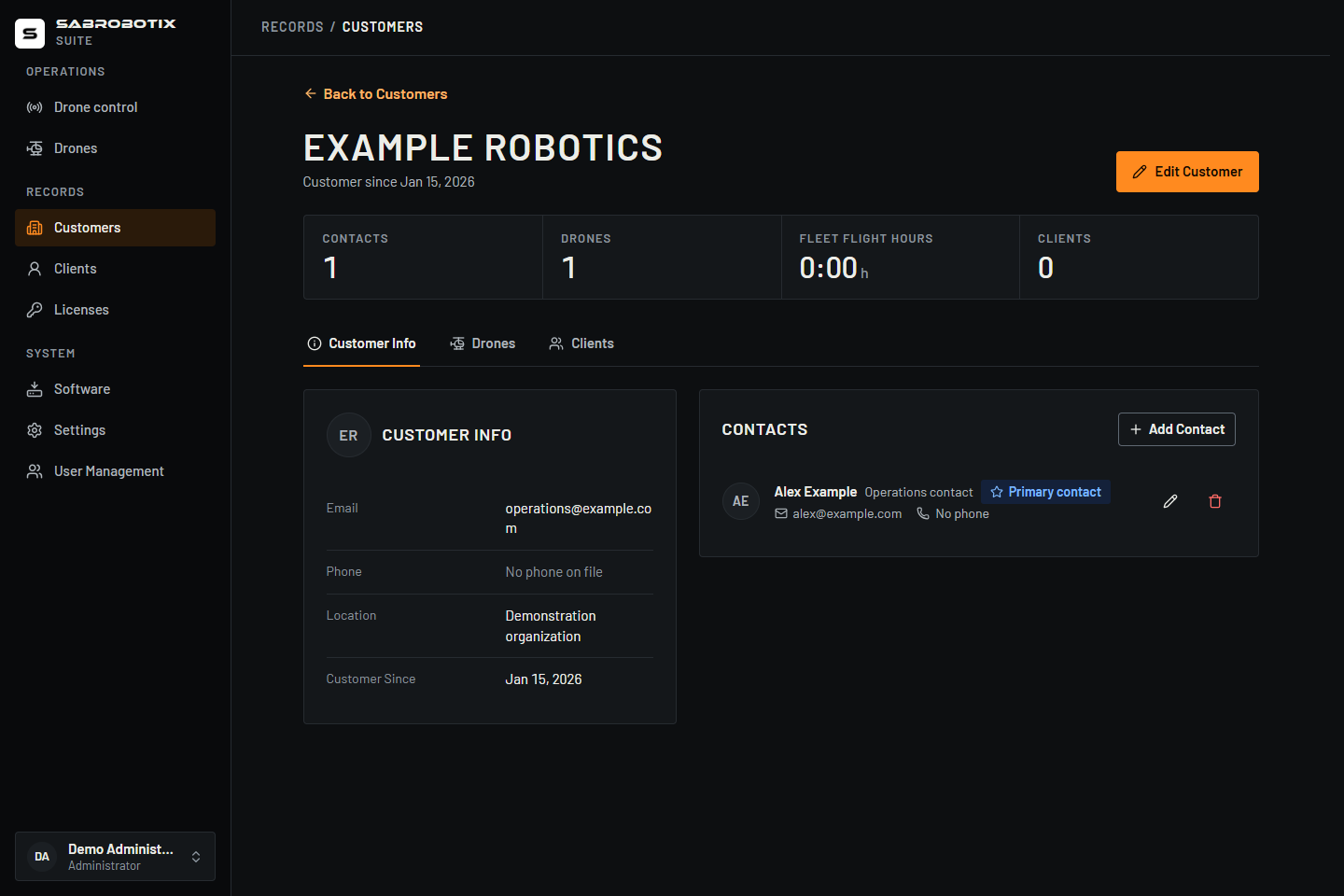 Administrator view with a demonstration organization and contact.
Manage contacts
- Open Customer Info and find the contacts section.
- Select Add Contact. Enter the person's name and any role, email, phone, or profile image required for the relationship.
- Save and confirm the contact appears under the right company.
- Use the star/primary-contact action to choose the primary contact, and wait for its primary badge.
The primary contact is shown first. Use the row's edit action to correct a contact or its delete action and confirmation to remove it. If the contact is also a Suite user, that separate account must be managed independently. Deleting a contact does not disable a login.
Review assigned drones and users
The Drones tab lists aircraft assigned to the organization. Open a drone to inspect its records; staff change its customer assignment in the drone editor. Check the assignment before sharing files or granting Client access because it determines which customer can see the drone.
Use Clients to create or maintain customer-associated accounts. Use Licenses to manage the organization's Harlock entitlements; contact information and licence state are independent.
Delete a customer
Review associated drones, contacts, Client accounts, licences, and retention requirements first. Use the customer's delete action and read the confirmation.
Deletion detaches its drones, removes its contact records, and attempts to remove the organization. Other associated data can prevent completion. The operation is irreversible and is not a way to disable one user's access. If it reports an error, reload and inspect the organization and its drone assignments before repeating the action: earlier detachments or contact removals may already have occurred.
For a record that should remain but whose users must lose access, use Disable a user.