Customer Client accounts
Administrators and Operators can create and manage customer-associated Client accounts. A Client login is different from a contact record. See Roles and permissions for the capabilities granted by this role.
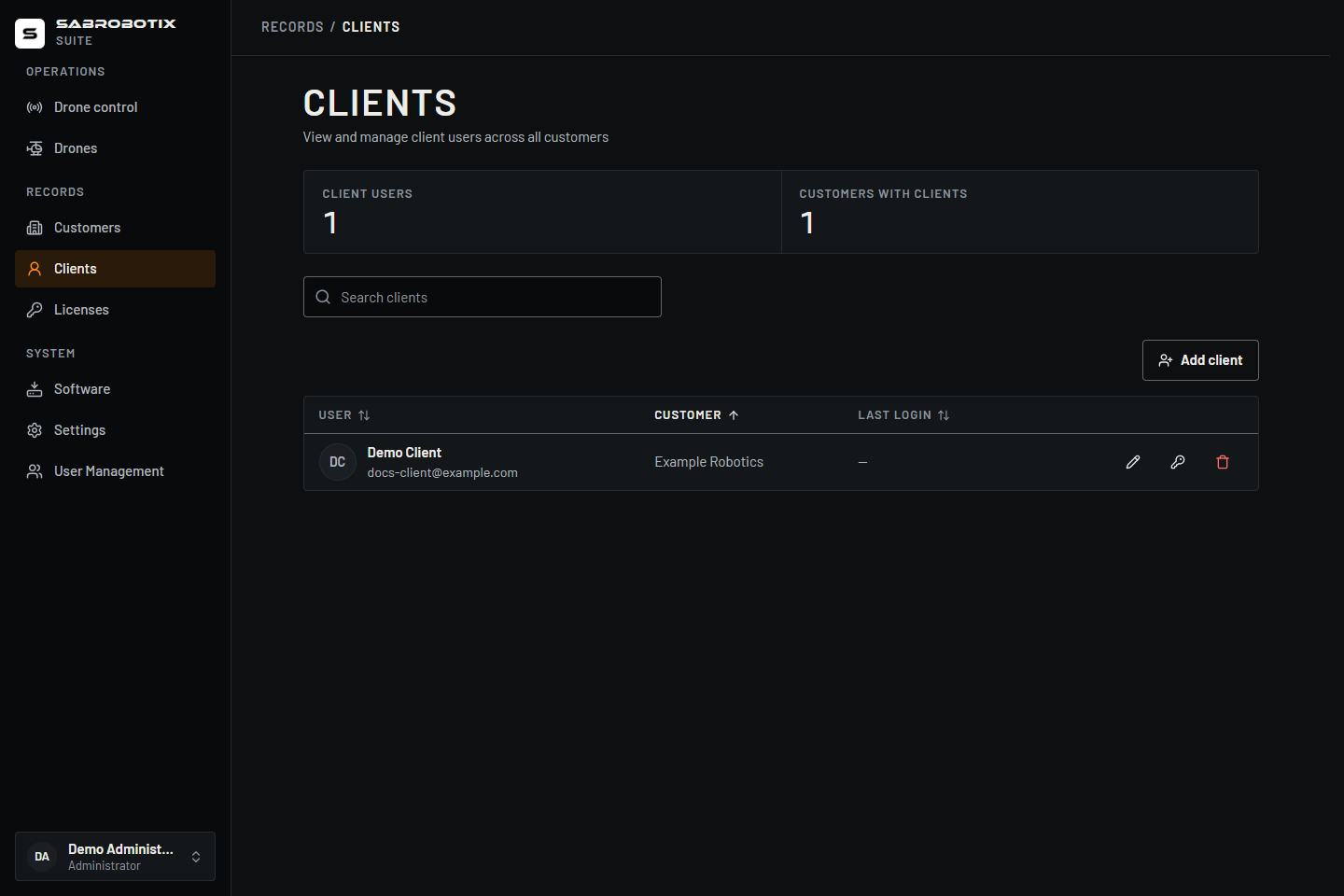 Administrator view of a demonstration customer login. Add client and the row's password action are also available to Operators.
Create a Client account
- Open Clients, or open Customers → select the organization → Clients.
- Select Add client. From the global Clients page, choose the intended customer in the form; from a customer's Clients tab, that customer is already selected.
- Enter the person's full name and unique work email. The role is fixed to Client in this form.
- Save and check the result under the intended customer.
- Copy the temporary password shown in the success message before dismissing it. Provide it through the approved secure channel.
- Ask the user to sign in within 30 minutes and complete the required password change within 10 minutes of sign-in.
Both entry points create the account and its customer association together. If the email already exists, ask an Administrator to inspect that account. Creating a second contact or changing a role does not automatically establish the customer association.
If the password is lost or expires, an Administrator or Operator can issue a replacement through the customer Client flow below. Resetting an internal Administrator or Operator account remains an Administrator-only action in User Management.
Issue a new temporary password
Available to Administrators and Operators for an account whose role is Client and which belongs to the selected customer.
- Open Clients, or the customer's Clients tab, and find the account.
- Confirm the person's identity, account email, and customer association.
- Select New temporary password from the row's actions. On a phone, open the row's actions menu first.
- Read the confirmation and confirm. The previous password and existing Suite sessions stop working.
- Copy the new temporary password before dismissing the result and provide it securely to the intended person.
- Ask them to sign in within 30 minutes and choose a permanent password within 10 minutes of sign-in.
The value is shown once and cannot be recovered. If it expires or is lost, issue another; earlier temporary passwords become invalid. A reset does not change the person's customer or role. If the account is not a Client or is no longer linked to that customer, stop and ask an Administrator to inspect it rather than changing associations to force a reset.
Find and edit a Client
- Open Clients to search by name, email, or company, or use the customer's Clients tab.
- Confirm the company and account email before selecting the edit action.
- Update the name, email, or profile image and save.
- Check the updated account and tell the person about any sign-in email change.
These actions update the account's profile, not a separate copy for that customer. The edit form does not assign Administrator or Operator roles, change the company, or change a password. Administrators manage roles and account status in User Management.
Delete a Client account
Select the account's delete action and review the confirmation. This deletes the login account, not just its visible row or a contact. Account sessions and credentials are withdrawn. Downloaded records and another application's already issued credentials are not recalled by deleting a row in the interface.
This flow refuses accounts associated with another customer or accounts whose role is no longer Client. Other references can also prevent deletion. Ask an Administrator to inspect such an account rather than removing associations by trial and error. For temporary suspension, use Disable user in User Management instead.
Confirm the resulting access
The customer association determines accessible drone records and licences. Clients see shared media and attachments, their own document uploads, flight logs, and maintenance records; live telemetry in the current Suite interface is reserved for Administrators and Operators. The current telemetry-dependent video launcher also prevents Clients from starting the saved cameras in Drone Control; see Video and cameras. Ask the user to verify their customer identity and expected drone list after first access. See My licenses and Photos, videos, and sharing for related visibility rules.