Account, language, and sign out
Open your account
Select your name at the bottom of the left navigation, then select Account.
The account page shows your profile, assigned role, account creation date, and last sign-in. Select Edit Profile to change the allowed profile information or profile photo.
Your email address identifies the account and is read-only in the profile editor. Ask an Administrator if it must change.
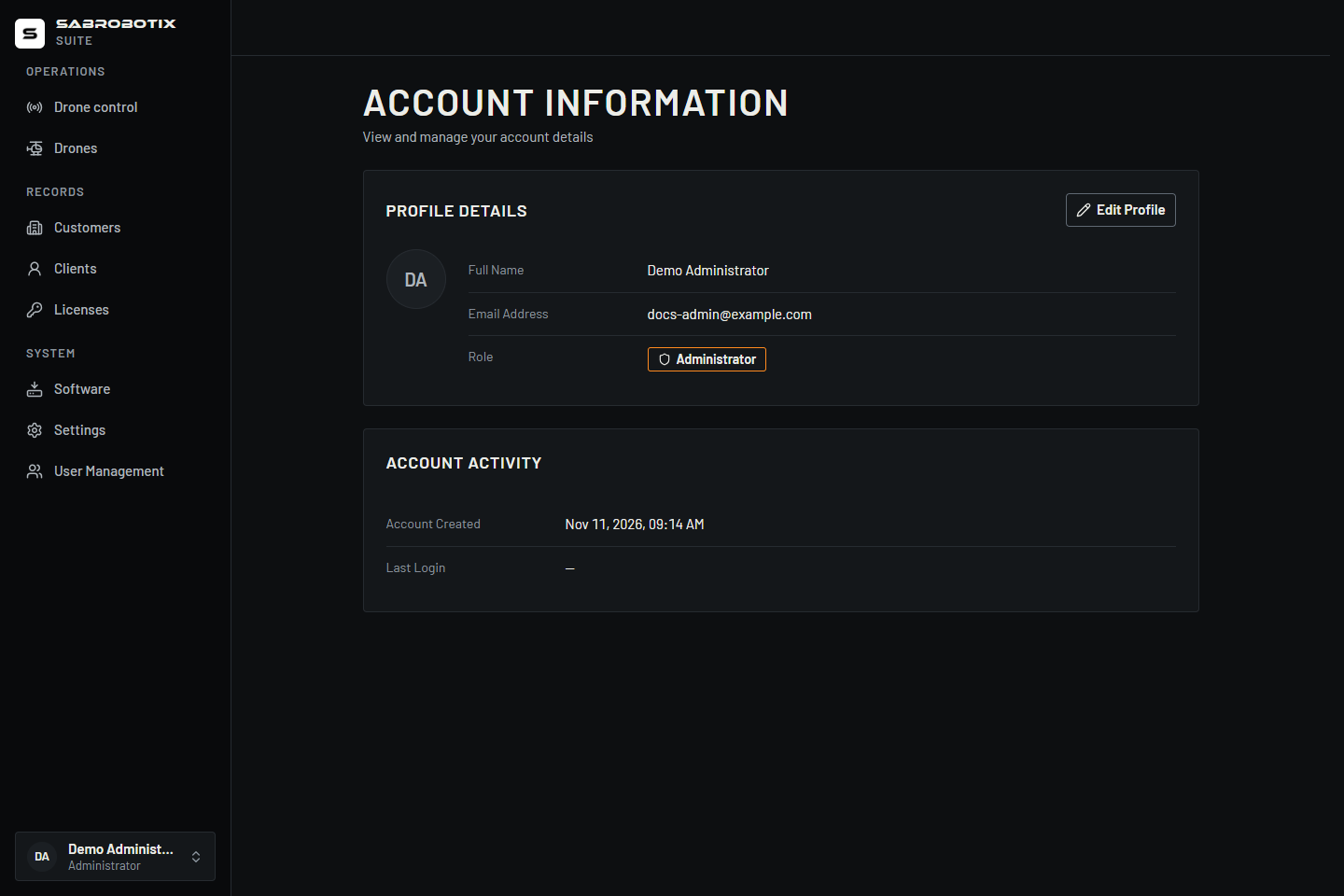 Administrator profile with demonstration identity.
Change your password
To change your password, ask a SABROBOTIX Administrator to issue a temporary password. For a customer Client account, an Operator managing that customer can also issue a new temporary password. The Account page has no self-service password change control.
- Sign in with the temporary password within 30 minutes of issue.
- On the required password-change screen, choose a permanent password that meets the displayed requirements and differs from the temporary value.
- Complete the change within 10 minutes of signing in, before opening other Suite pages.
Issuing a temporary password invalidates your existing Suite browser sessions and replaces any earlier temporary password.
New accounts follow the same procedure on first sign-in. If the temporary password or change session expires, ask the authorized Administrator or customer Operator to issue a new temporary password.
Choose appearance
Open Settings, then choose:
- Light for a bright interface;
- Dark for dimmed surfaces;
- System to follow the device setting.
Changes save automatically. Wait for Preferences saved or the normal autosave message before leaving the page.
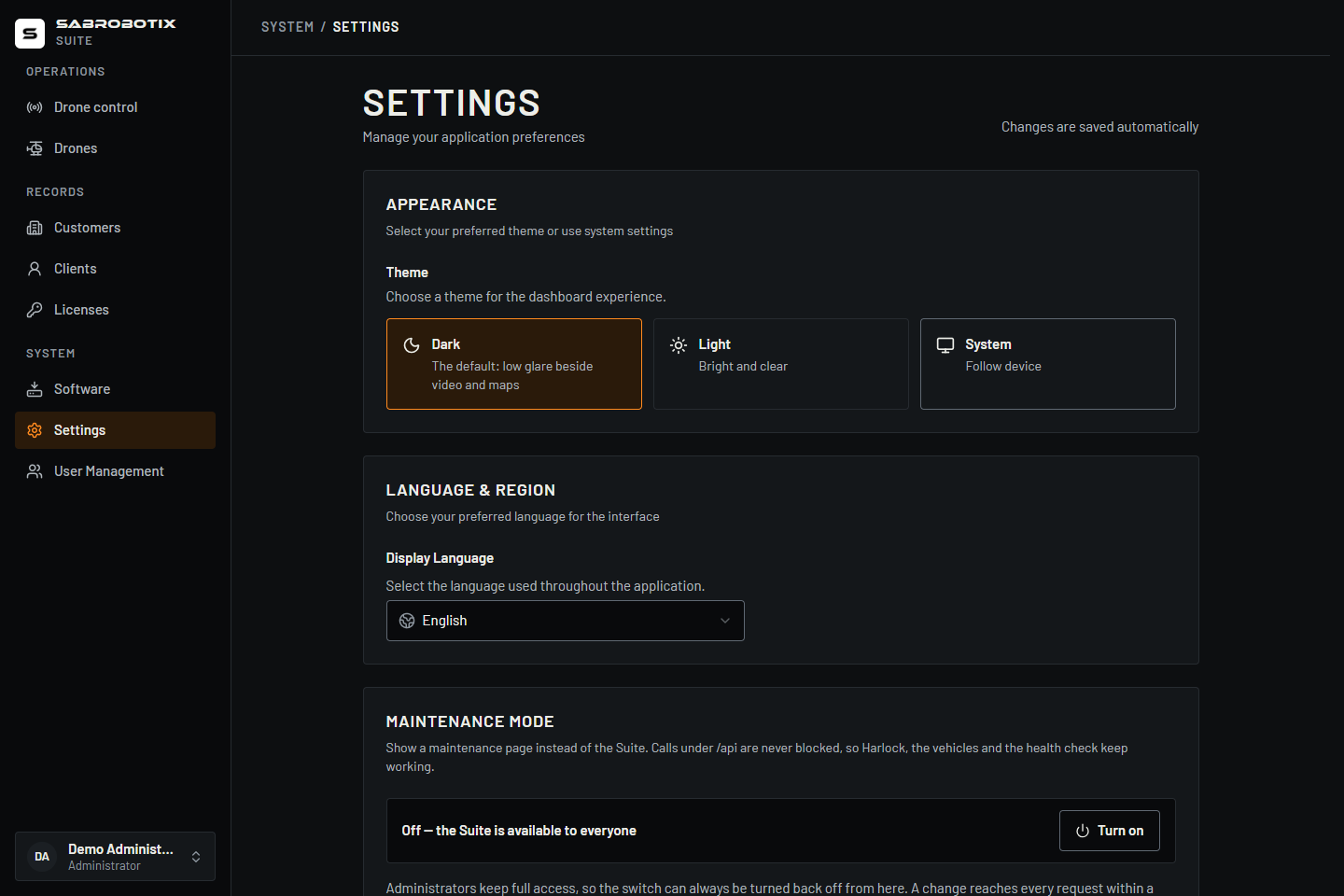 Administrator view. Other roles do not see Maintenance mode.
Change language
The Suite currently offers English and Italian.
- Open Settings.
- Under Language & Region, open Display Language.
- Choose English or Italian.
- Wait while the Suite reloads the current page in the selected language.
The interface language preference follows your account. Customer names, drone names, uploaded document names, and other entered data are not automatically translated.
Check the Suite version
The About section of Settings shows the application name, version, and release date. Include these values when reporting an interface problem to support.
Administrators also see Maintenance mode. It affects access to the Suite interface for Operators and Clients; read Suite maintenance mode before using it.
Sign out
- Select your name at the bottom of the navigation.
- Select Logout.
- Wait for the sign-in page or your organization’s sign-out confirmation.
- Close the browser window on a shared computer.
Signing out ends the Suite session. It does not stop an aircraft, change its flight mode, or necessarily stop onboard systems. Complete the operational handover before signing out during an active operation.