My licenses
My licenses is the Client view of the licences associated with your customer account. Administrators and Operators use Licenses.
Review your licenses
- Open My licenses under Records.
- Find the licence code supplied for your organization.
- Review its status, type, expiration date, Offline days, and notes.
- Under Activations, check device labels, platforms, status, activation dates, and last validation dates.
The list contains customer licences, not just devices activated by you personally. Not activated means a licence has not yet been used; you can still be eligible to download Harlock. A successful Suite sign-in does not activate Harlock.
Active and Not activated are different from Expired or Revoked. An activation can separately be Active, Deactivated, or Revoked. If you do not recognize a device, ask an Administrator or Operator to investigate before requesting another licence.
An offline allowance is not the number of days remaining on your current device. Check Harlock's actual validation state and deadline before relying on offline use. A last validation date is historical, not an online indicator.
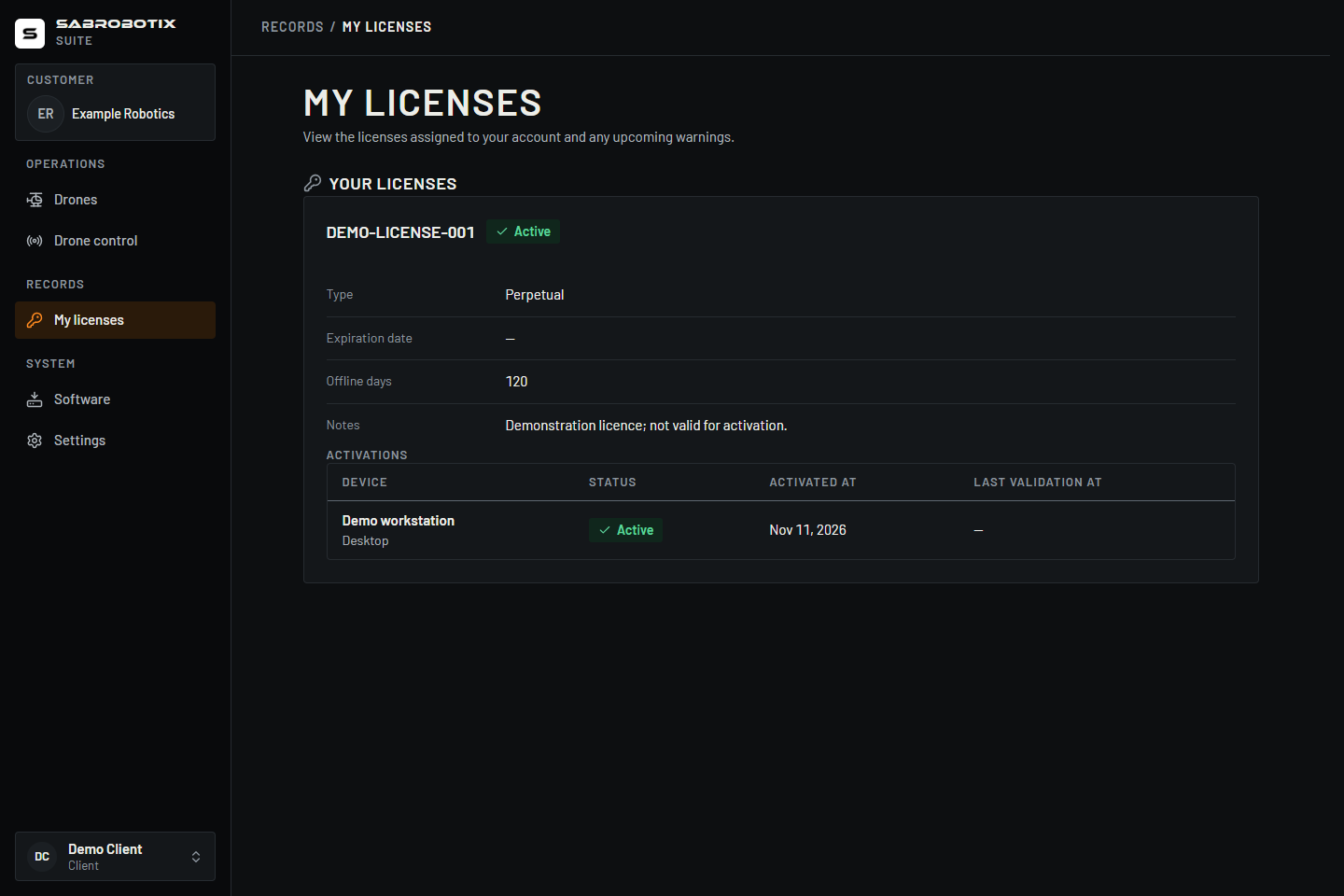 Client view with a demonstration customer licence and device.
Expiration warnings
Upcoming warnings shows expiring licences, their expiration dates, and days left. Use the Suite switch to enable or disable the displayed warning threshold, then wait for the update to finish.
This changes a warning setting for that licence, not its validity period. It does not control GCS warnings from this page and does not renew the licence. A warning for a later threshold may still appear. Coordinate changes with other users of the same customer licence.
Activate or change devices
Install Harlock from Software, then complete sign-in and activation in Harlock using your organization's licence. Use the Harlock documentation for that application's procedure.
My licenses has no create, renew, revoke, or device-removal action. Ask an Administrator or Operator to manage the licence or its activations. Do not assume that signing out of the Suite releases a Harlock activation.
If a license is missing or unusable
- Confirm the customer identity shown in the Suite and that you are using the expected account.
- Ask staff to check the account-to-customer association, licence status, and expiration date.
- An empty list is different from a page showing a load error. Refresh after an error and report its exact text if it persists.
- For a download problem, follow Software. Include the licence code and device label through your approved support channel; do not send passwords or activation tokens.